
Creating circular text around a path in Photoshop is something every graphic designer (or aspiring graphic designer) needs to know how to do. Most people would try to use the text warp tool, but if you're trying to type something in a specific path, that tool is not going to be helpful. The arc in text warp can distort your text, and even if you stretch the arc up the text won't go in a complete circle.
(Click on any of the images to enlarge them.)
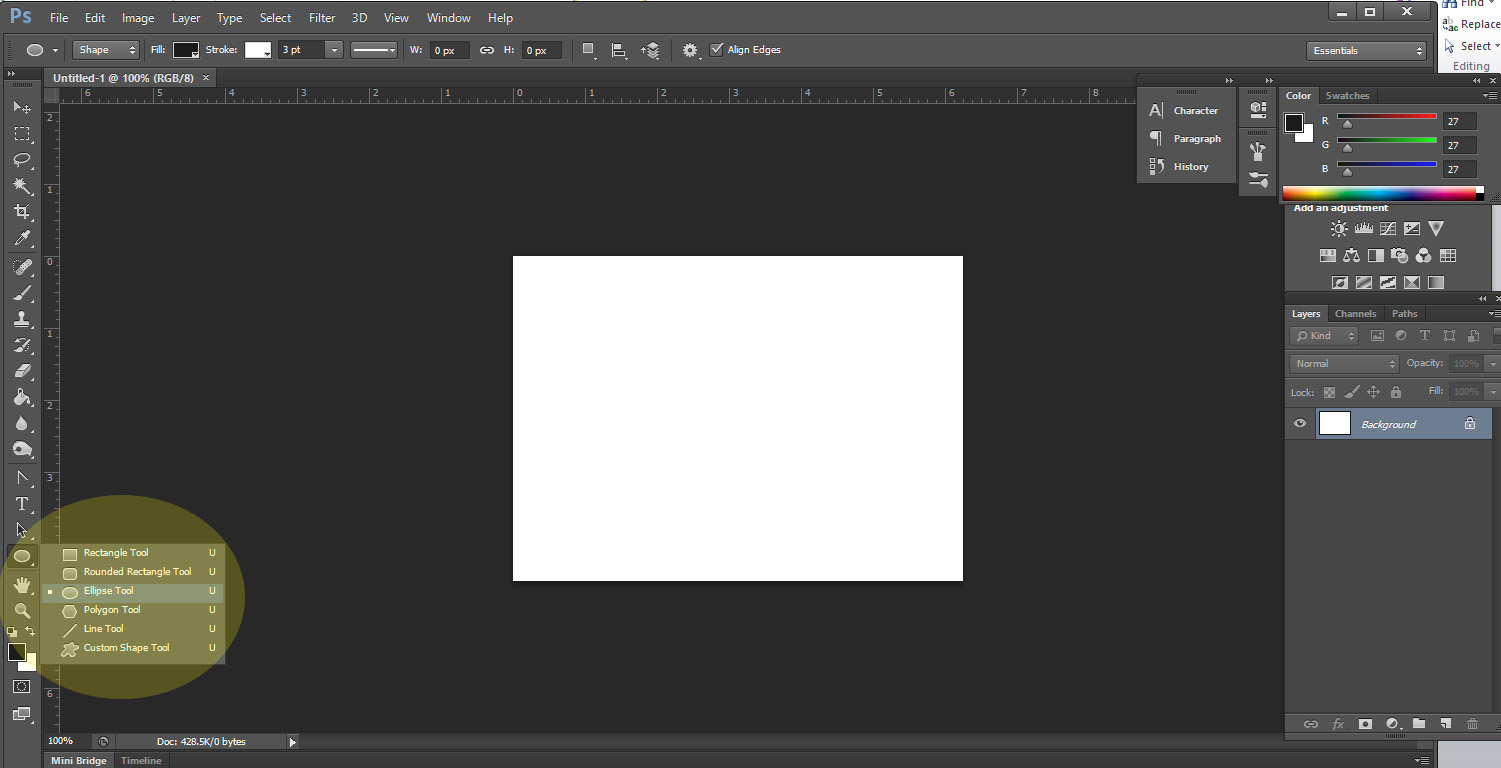
1. Open your document, and select your ellipse tool.
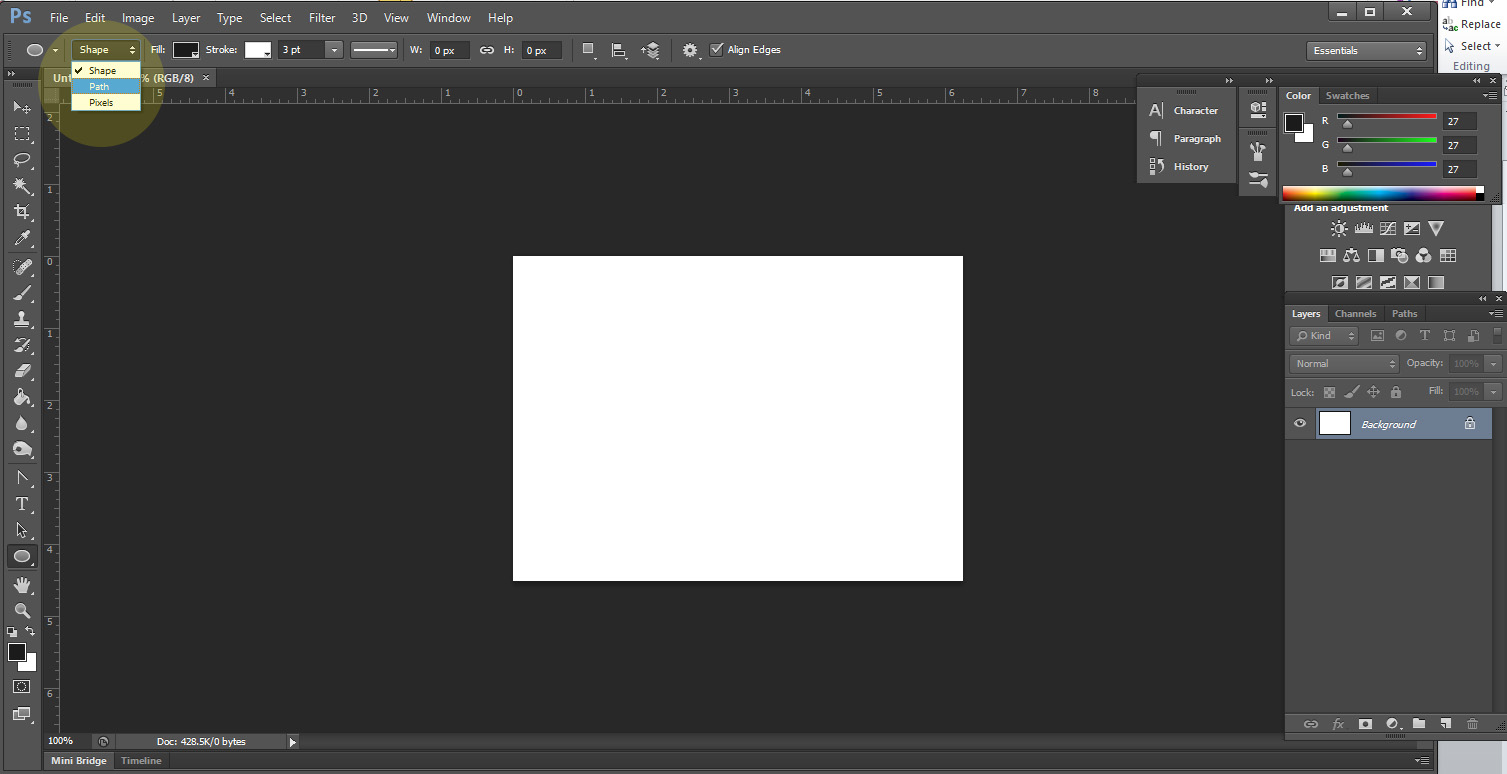
2. Normally when the ellipse tool is selected it is automatically set to "shape." Change that setting to "path."
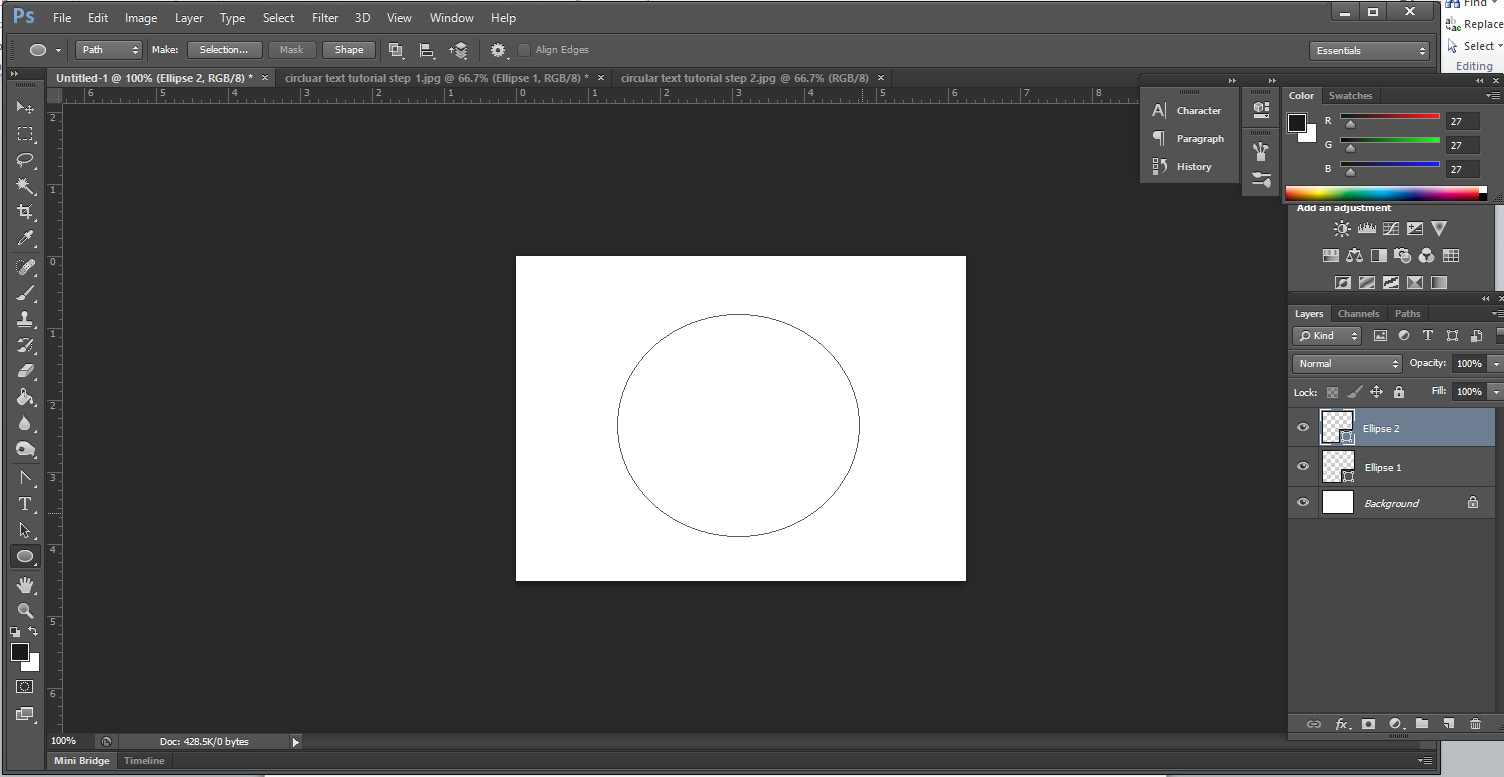
3. Draw out your path holding down the shift key to make a circle.
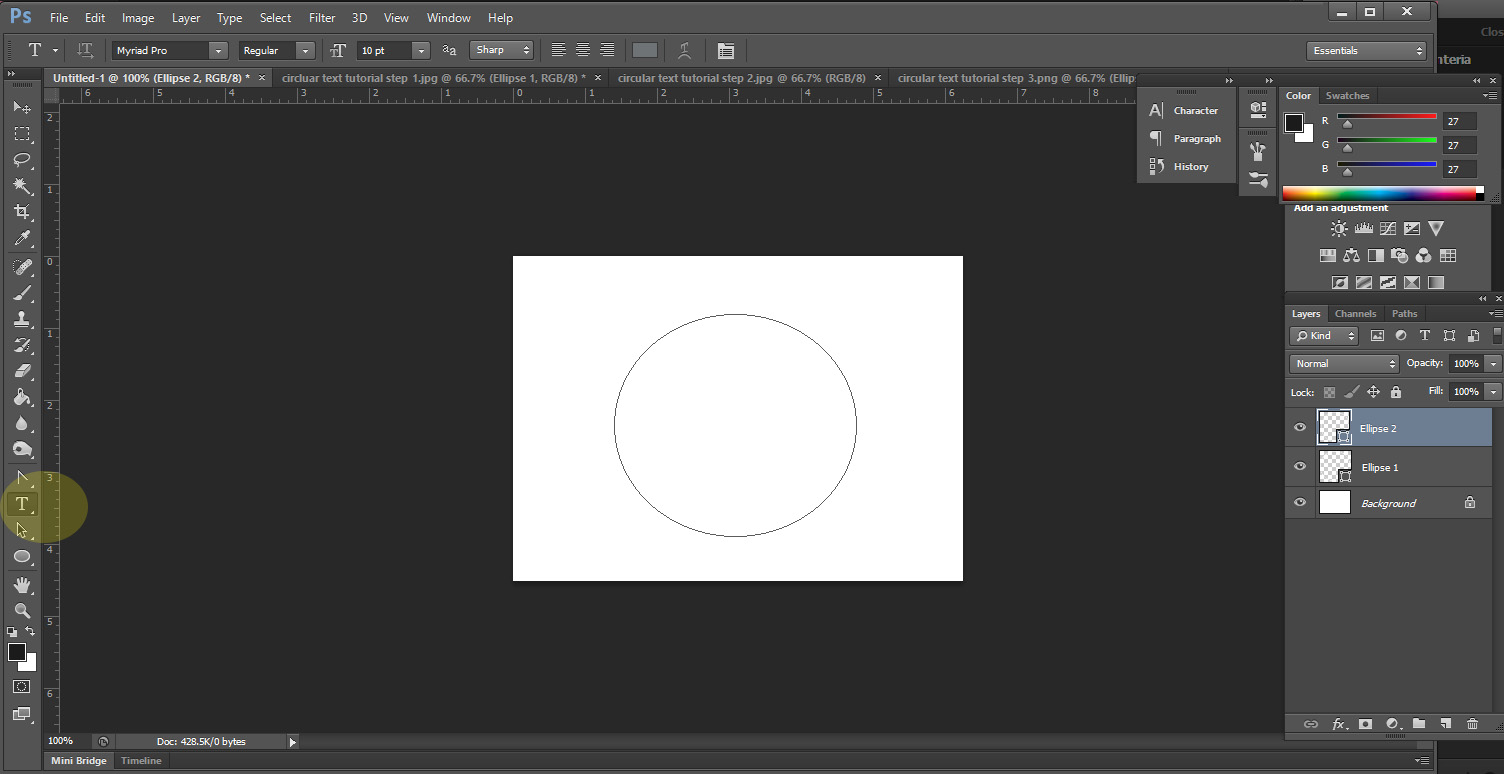
4. Once you have your path, click your type tool.
5. Hover over the path until your cursor changes to a squiggle line.
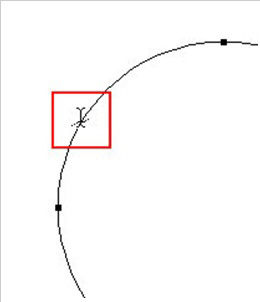
6. Click, and start typing your text.
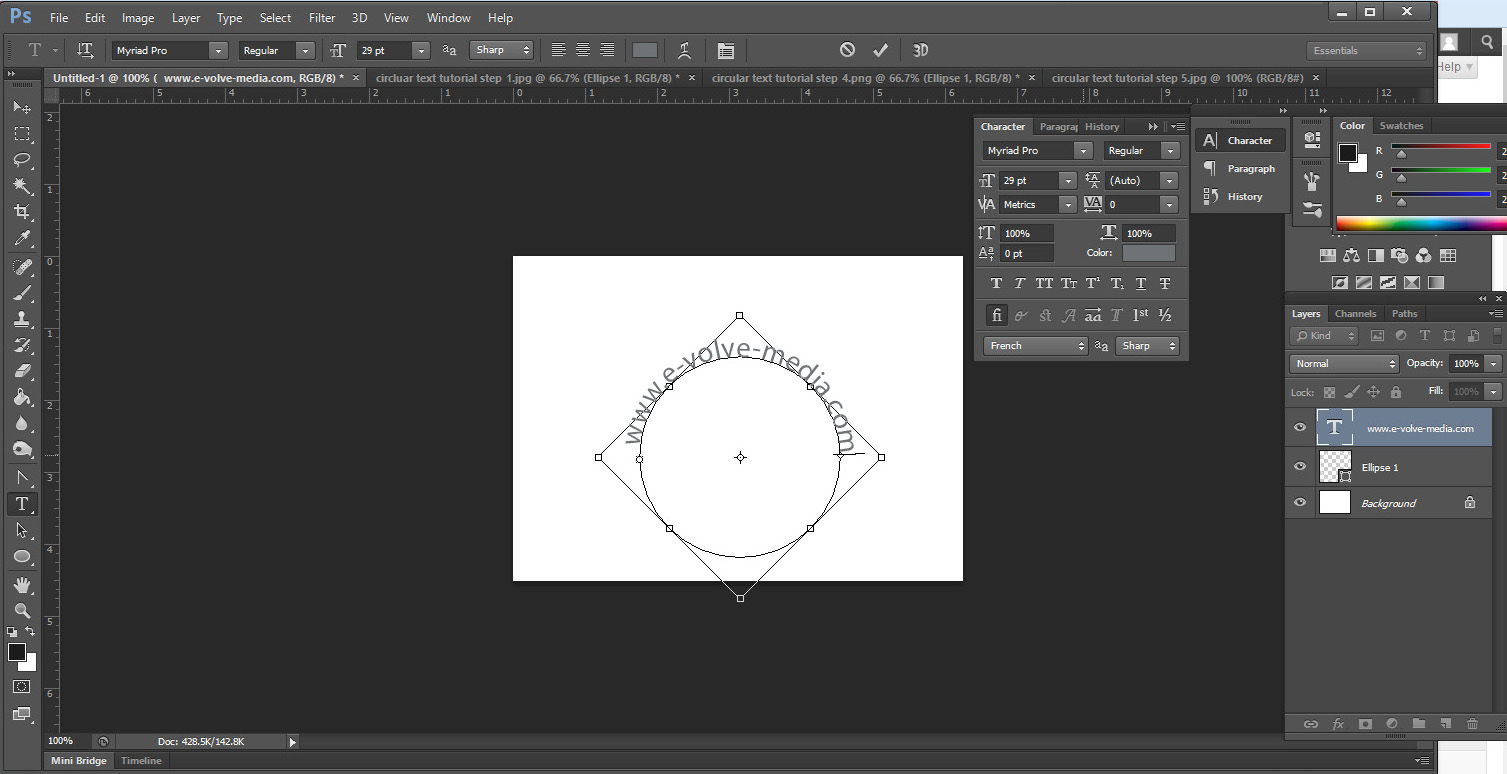
And voila! This same method applies for any shape path in Photoshop.
Need some more graphic design services? Contact us today!